


How to use the app
Set up the app on your iPhone, take your first prayer walk, and see the streets your church has covered in prayer.
Get set up
Setup takes about a minute, and you only do it once.
- Step 1
Download the app
On your iPhone, open the App Store and search for Eleven22 Prayer Walk. Tap Get, then open the app.
- Step 2
Enter your details
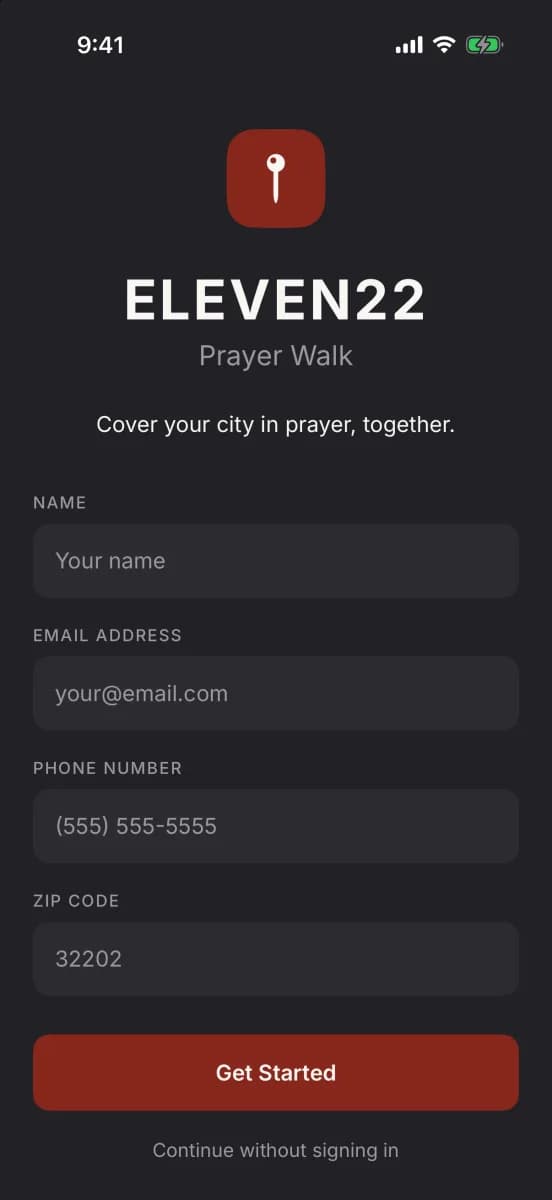
Enter your name, email, phone number, and zip code, then tap Get Started. If you would rather skip this, tap Continue without signing in.
- Step 3
Choose your campus
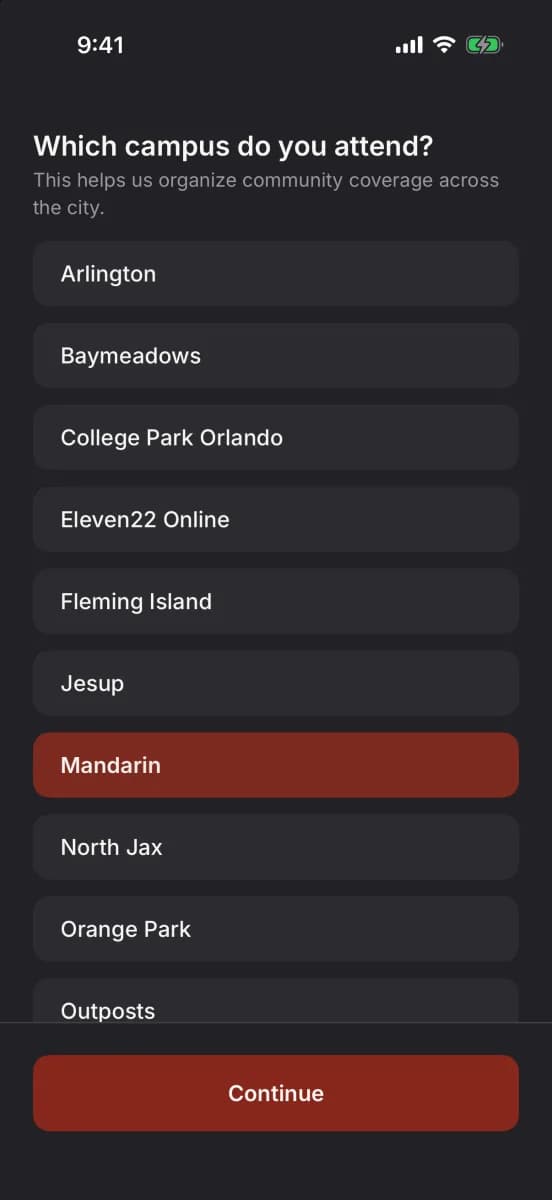
Tap your campus, then tap Continue. You can change your campus later on the Profile tab.
- Step 4
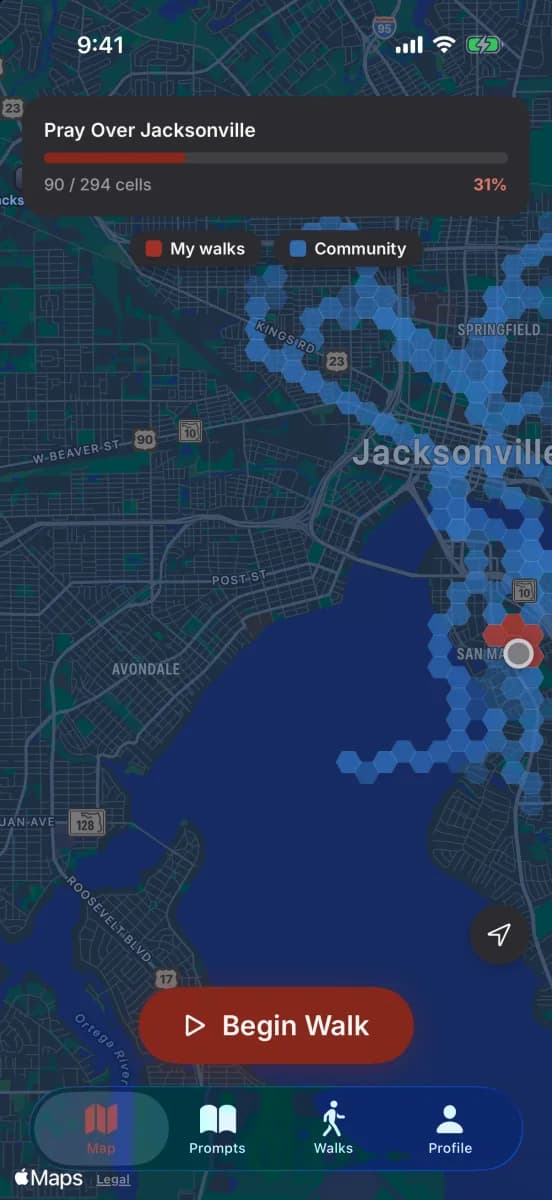
Get to know the map
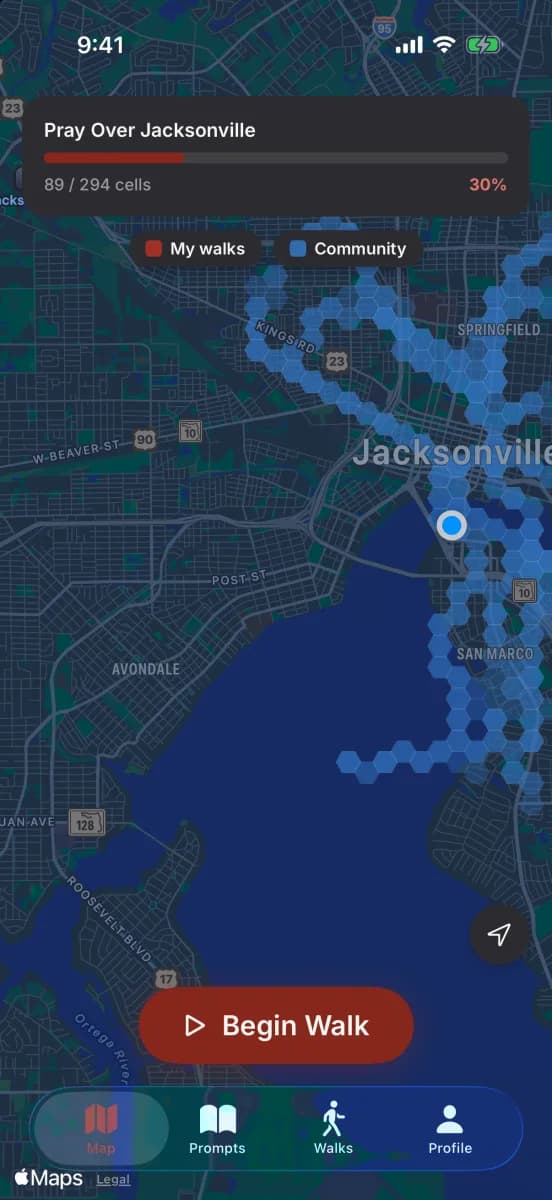
Blue shows where other Eleven22ers have prayed, and red shows your own walks. Tap My walks or Community to turn either color on or off.
Take a walk
You can walk with fellow Eleven22ers in your neighborhood, with your family, or alone. The steps are the same.
- Step 5
Tap Begin Walk
Go to where you want to start, then tap Begin Walk on the Map tab.
- Step 6
Count who's walking
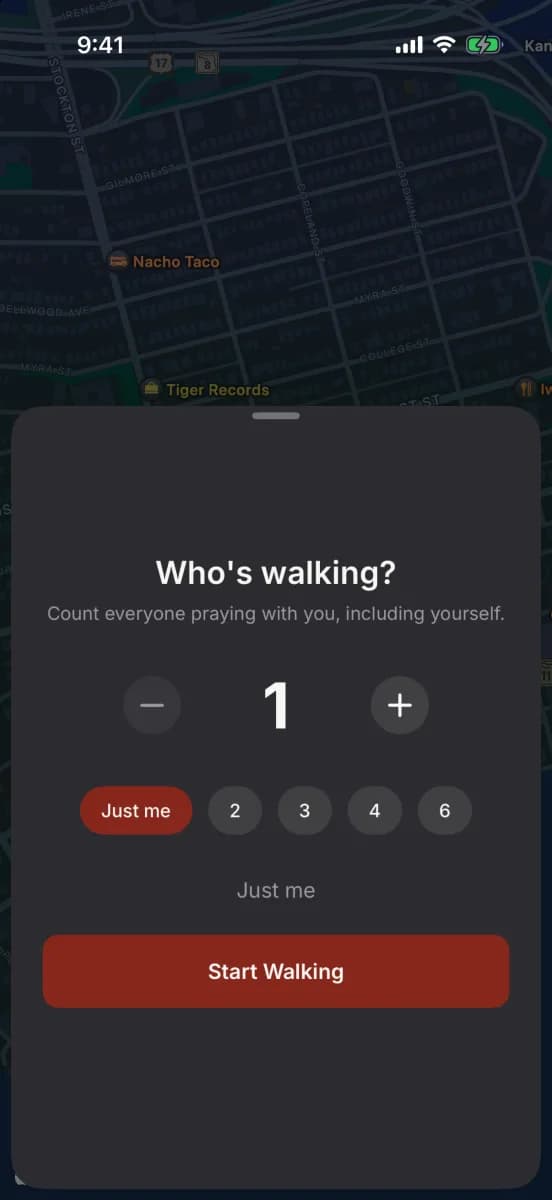
Count everyone praying with you, including yourself. Tap Just me or a number, then tap Start Walking.
- Step 7
Allow your location
The first time, your iPhone asks to use your location. Tap Allow While Using App.
- Step 8
Start walking
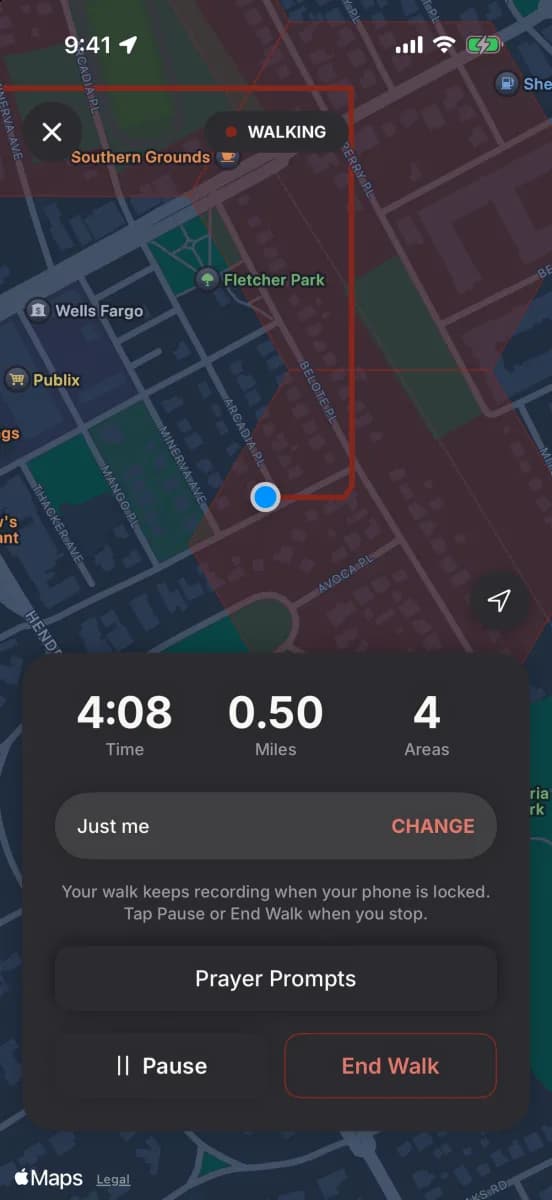
The app draws your route and counts your time, miles, and areas. You can lock your phone, and the walk keeps recording. Tap Pause if you need to stop for a while, then tap Resume when you are ready.
- Step 9
Pray as you go
Pray as the Spirit leads as you pass each house. If you know the people who live there, pray for them personally and by name. If you don't, remember that God knows them, and He will fill in the gaps of your prayers.
- Step 10
Use the prayer prompts
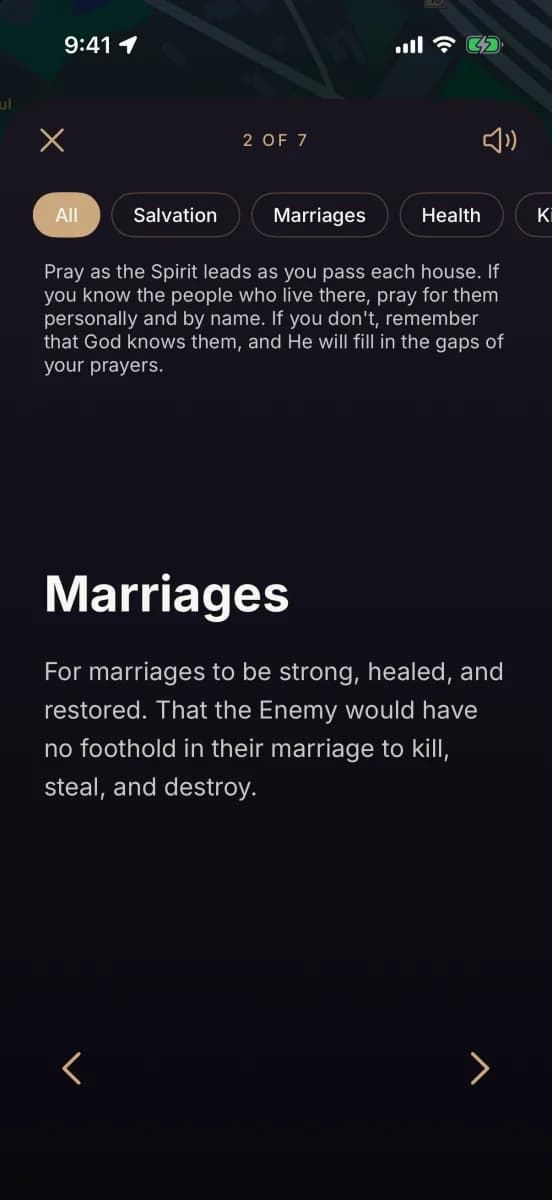
Tap Prayer Prompts for help with what to pray. Use the arrows to move through seven topics: salvation, marriages, health, kids and students, provision, repentance, and unity of believers. Tap the speaker to hear a topic read aloud, and tap the X to go back to your walk.
- Step 11
End your walk
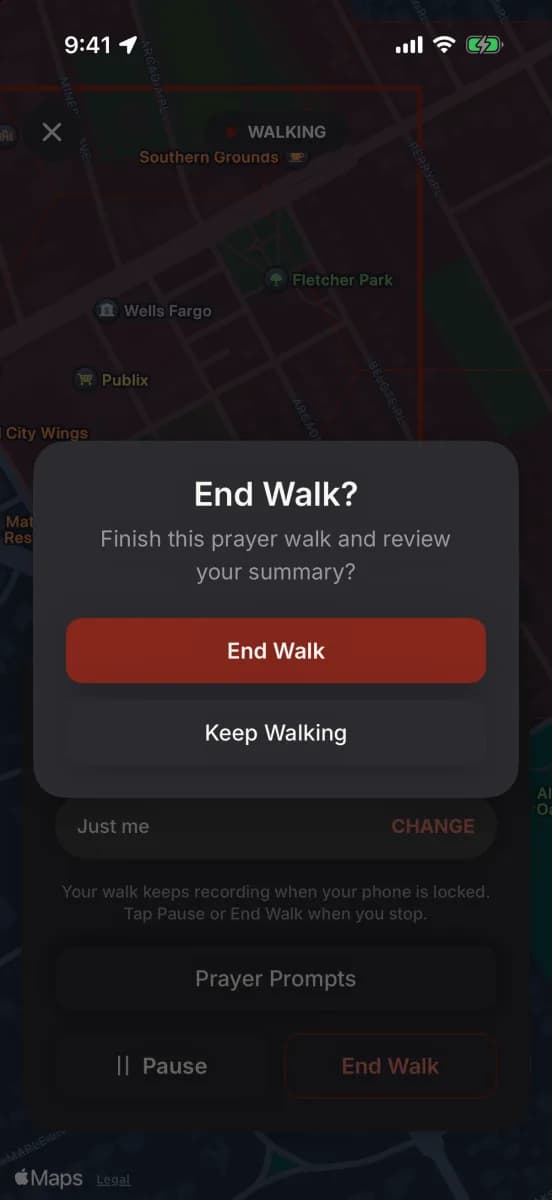
When you finish, tap End Walk, then tap End Walk again to confirm.
- Step 12
Save your walk
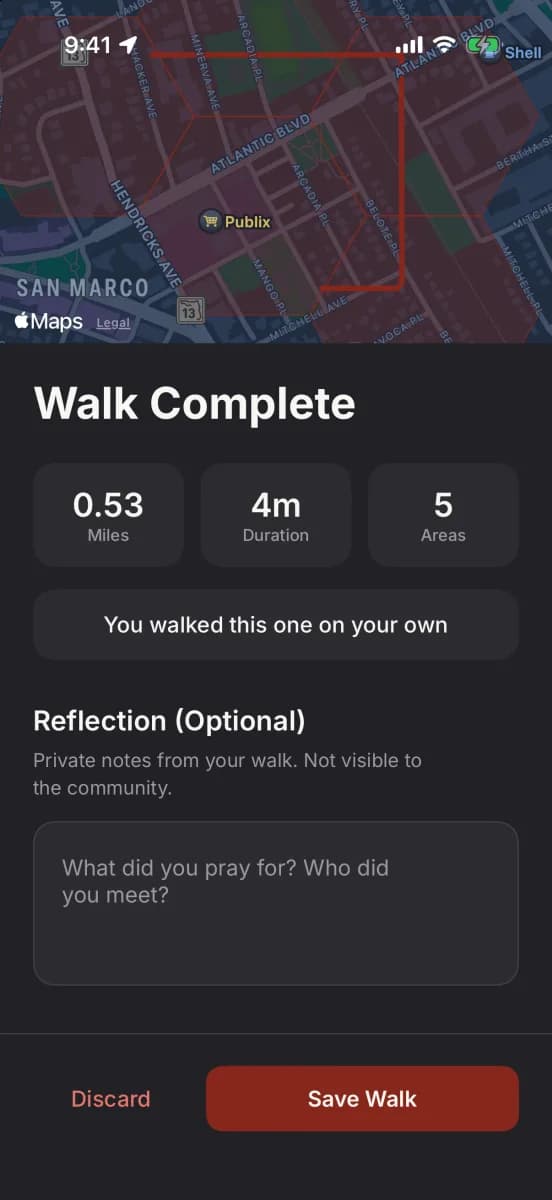
Review your summary. You can write a private reflection about what you prayed for and who you met. The community never sees it. Tap Save Walk, then tap Done.
After your walk
Every saved walk adds to your map and your totals.
- Step 13
Map tab
The areas you walked now show in red.
- Step 14
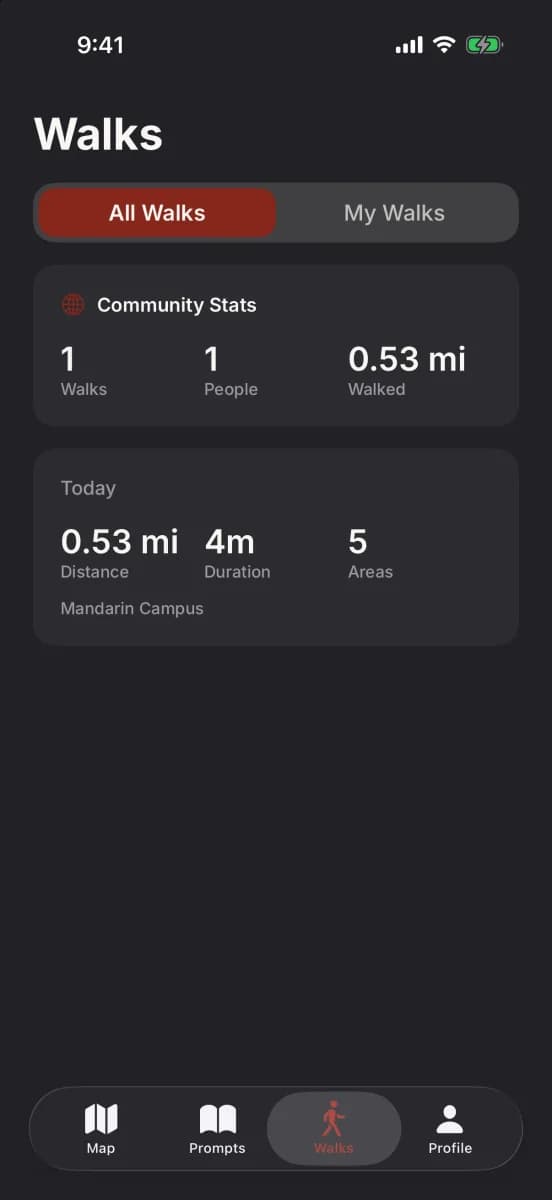
Walks tab
See community totals under All Walks and your own history under My Walks.
- Step 15
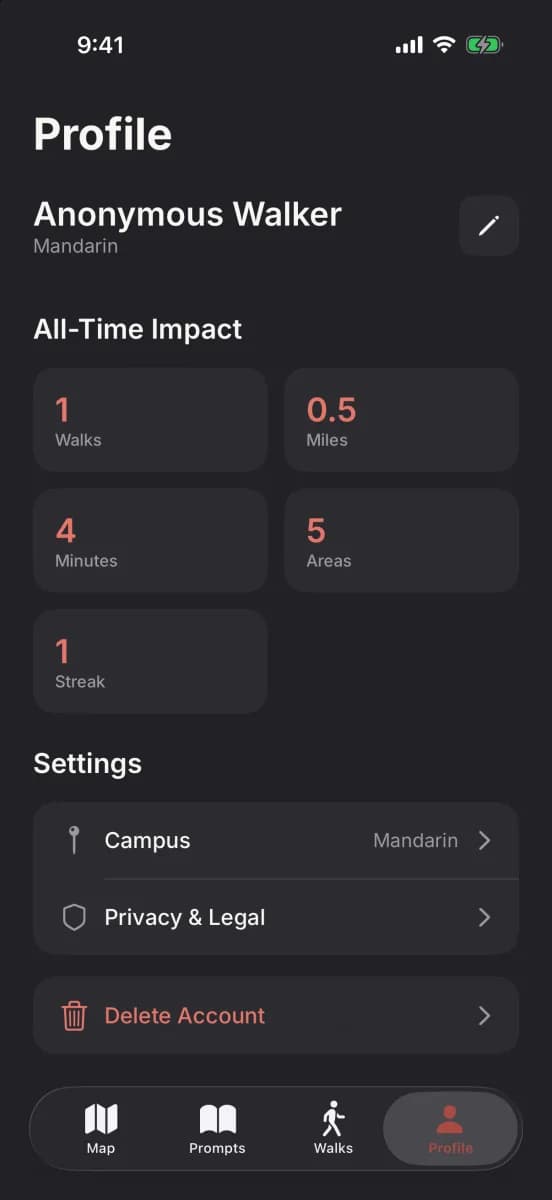
Profile tab
See your walks, miles, minutes, areas, and streak. You can also change your campus or edit your details here.
Pray any time
The Prompts tab works whether or not you are on a walk.
- Step 16
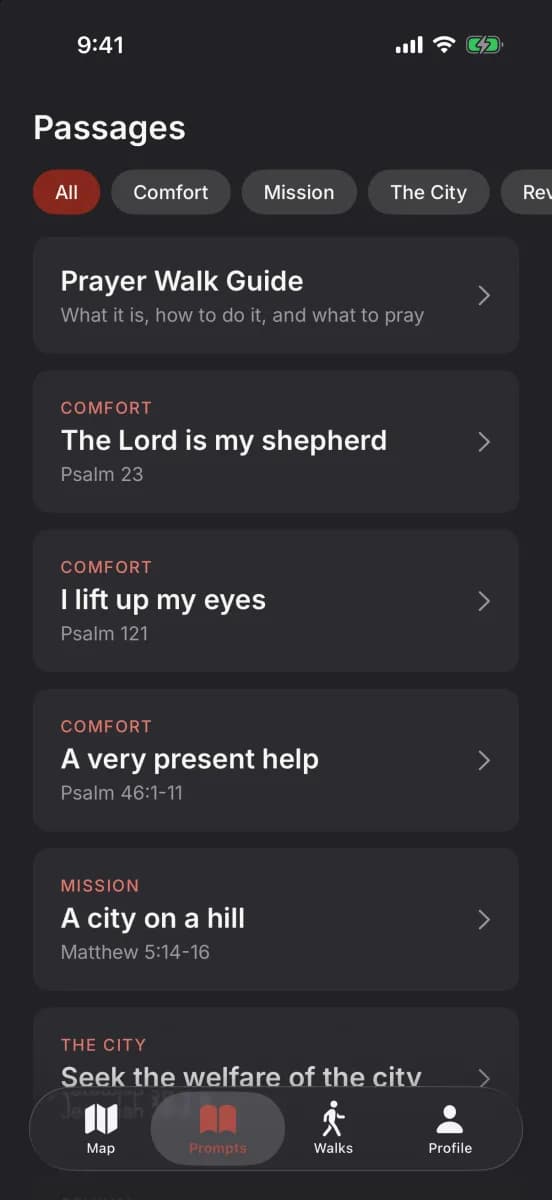
Read Scripture
Tap Prompts at the bottom of the screen. Tap a passage to read it, or use the buttons at the top to filter by theme.
- Step 17
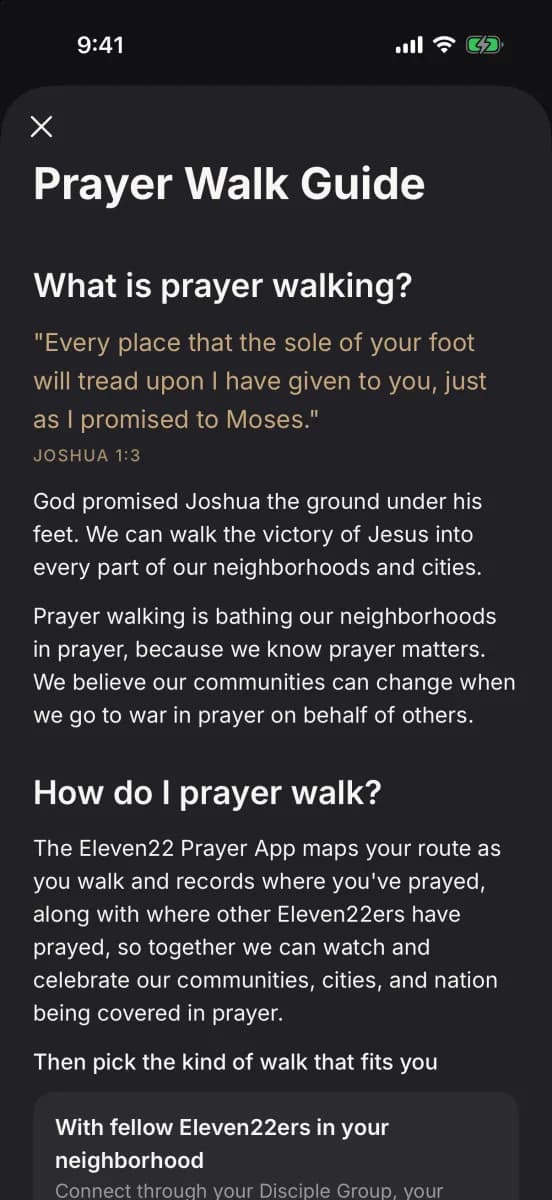
Open the Prayer Walk Guide
Tap Prayer Walk Guide to read what prayer walking is, how to do it, and what to pray.
If something goes wrong
- A warning that Precise Location is off
- Tap Open Settings on the banner and turn on Precise Location.
- Weak GPS signal
- Keep walking. Your route fills in when the signal improves.
- The app can't reach the internet when you save
- Your walk stays on your phone and uploads later on its own.
- You closed the app during a walk
- Open the app again and choose to resume or end the walk.
The maps and numbers in these pictures are sample data. Your map will show real walks.